
Resetting audio settings on Windows 11 is super easy; you just need to know the right way to do it. Here are the best ways to reset all Windows 11 computer/laptop audio settings.
1. Reset Volume for All Devices in Windows 11
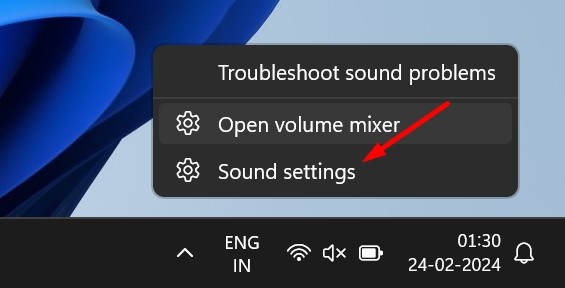
1. Right-click on the sound icon on your taskbar and select Sound Settings.
2. Click on Volume Mixer.
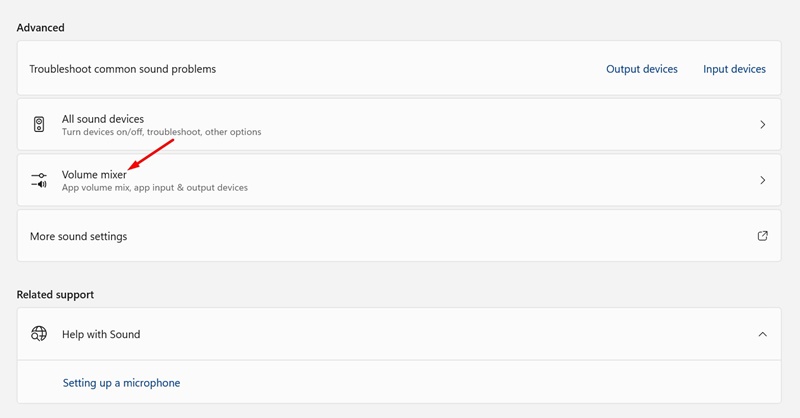
3. Scroll down to the bottom of the screen and click on Reset.

After the reset, restart your computer. This will bring the volume level to the default for all devices.
2. Reset the Audio Driver in Windows 11
You can uninstall the Audio device driver from your system and install it again to reset the audio drivers.
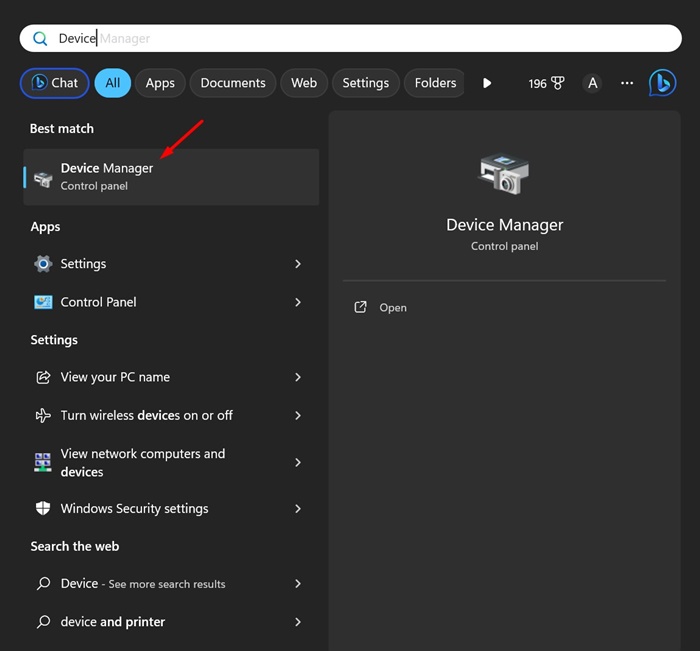
1. Open the Device Manager app from the Windows search.
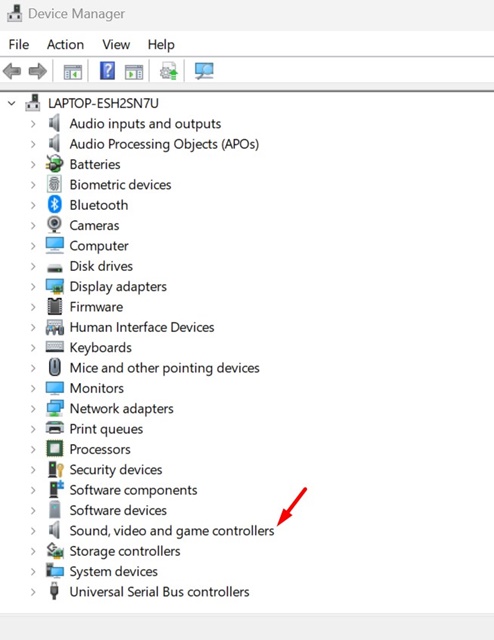
2. Expand the Sound, Video and game controllers tree.
3. Double-click on the audio device with the issue.
4. Switch to the Driver tab and select Uninstall device.

5. Select Uninstall.
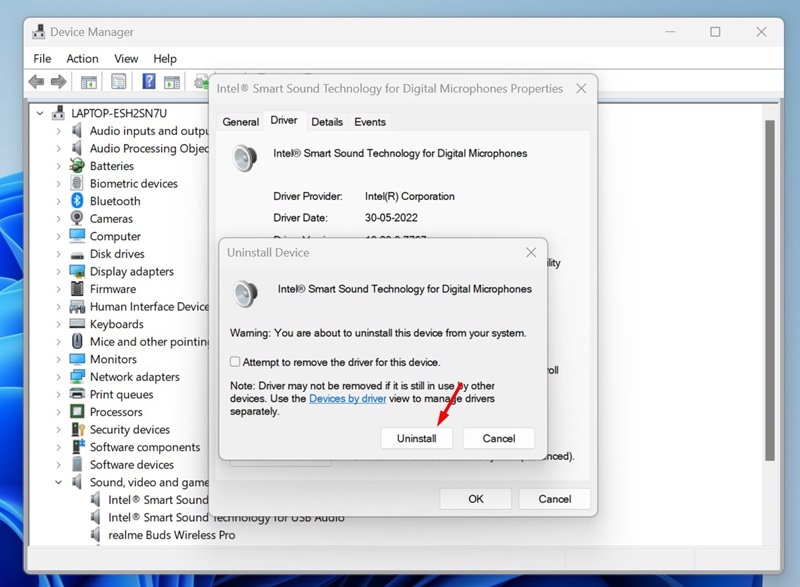
Restart your computer to install the device again. This should fix the audio issues you’re facing related to the device.
3. Reset the Audio Services on Windows 11
Resetting the audio services is another great way to deal with sound issues. You should restart these Audio services if you’re experiencing sound quality issues.
1. Open the Services app from the Windows Search.
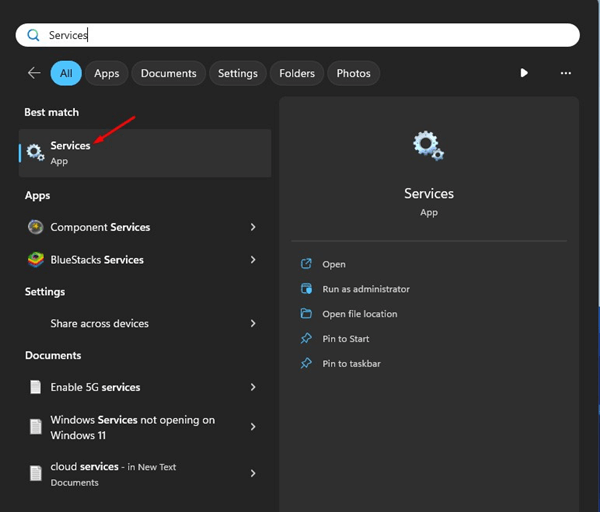
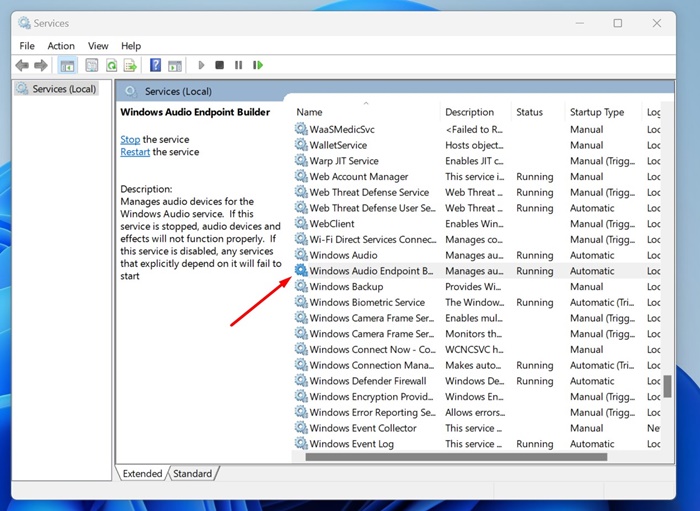
2. Find the Windows Audio Endpoint Builder.
3. Right-click on the service and select Restart.
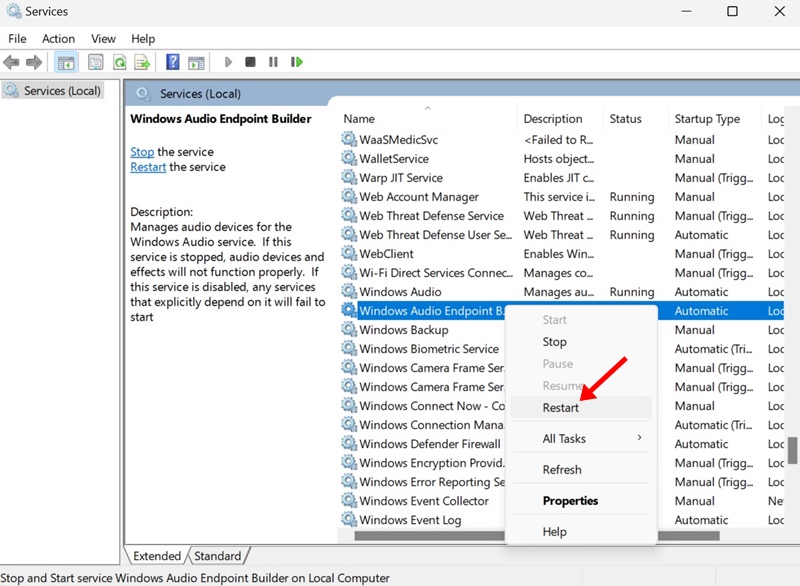
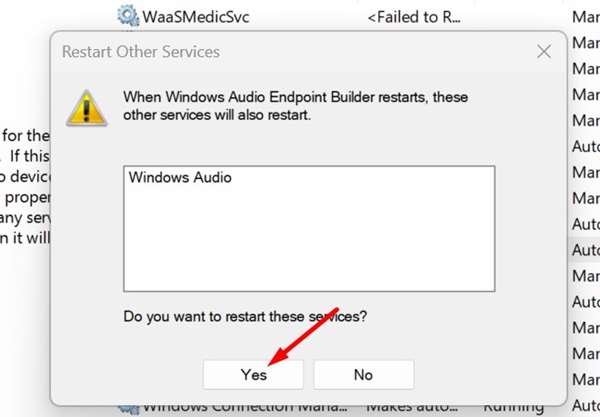
4. On the restart the Windows Audio Service prompt, click Yes.
Other Ways to Deal with Audio Issues?
The methods we have shared will reset the Audio services on Windows 11. However, you should reset the audio services only after trying these basic things:
- Update the Windows 11 operating system.
- Running the Audio Troubleshooter.
- Reconnecting the Audio Devices to the PC/Laptop.
- Ruling out the Hardware issues.
- Uninstalling the recently installed programs.
These are the best ways to reset all audio settings on a Windows 11 computer. If you need any help troubleshooting audio issues on Windows 11, let us know in the comments below.
The post How to Reset Audio Settings in Windows 11 (All Methods) appeared first on TechViral.
from TechViral


0 Comments