
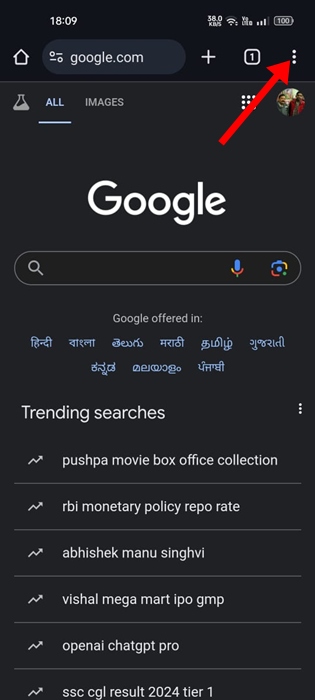
What if you want to maintain privacy and don’t want Chrome to automatically open PDFs after download? To stop Chrome from automatically opening PDFs after download, you need to make some changes to the Chrome Settings.
Stop Chrome from Automatically Opening PDFs after Download on Android
Make sure that you’re using the latest version of Google Chrome on your phone.
1. Launch Google Chrome on your phone. Tap the three dots at the top right corner.
2. Select Settings.
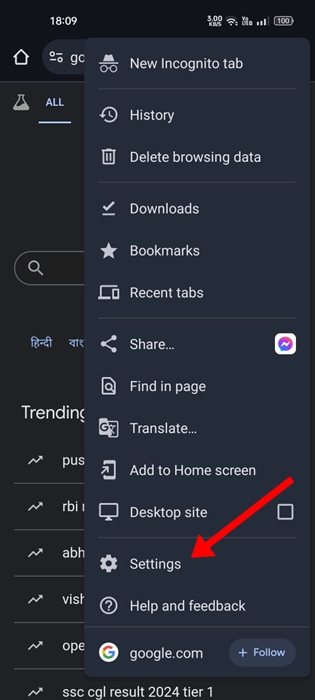
3. Tap Downloads.
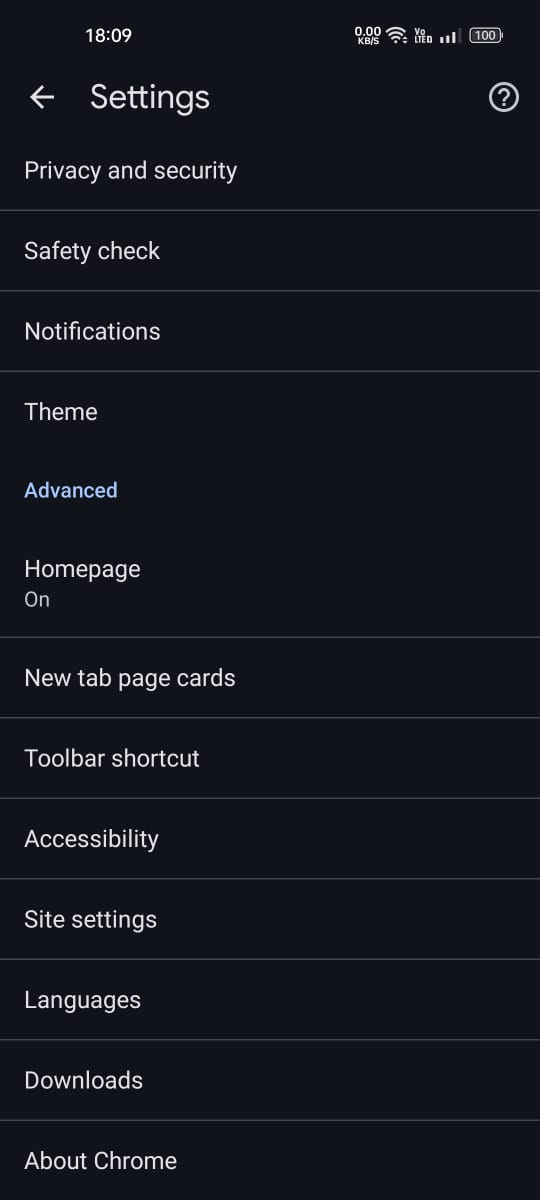
4. Turn off the toggle for Automatically open PDFs.

Stop Chrome from Automatically Opening PDFs after Download on PC
The steps to prevent Chrome from opening the downloaded PDF files are a bit different on a desktop. Here’s what PC users need to do.
1. Launch the Google Chrome browser on your desktop.
2. Click on the three dots at the top right to open the Chrome Menu.

3. On the Chrome menu, select Settings. You can also type chrome://settings in the address bar and press Enter.

4. Switch to the Privacy and Security tab.
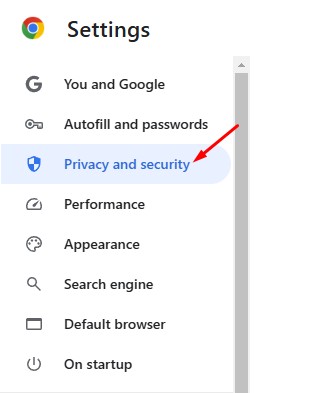
5. Scroll down and click Site Settings.
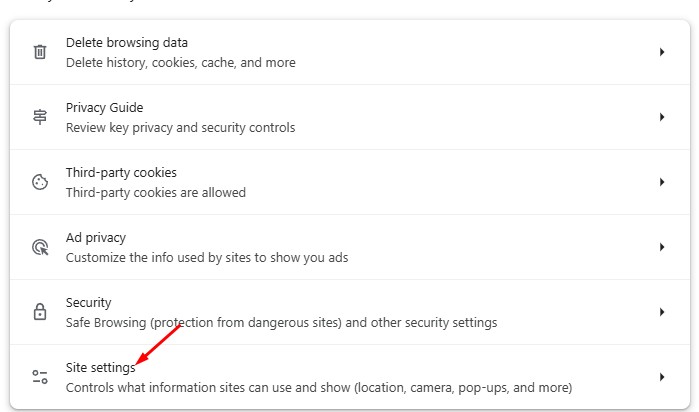
6. Scroll down to the Additional content settings and tap PDF documents.

7. On the Default behavior for PDF documents, select Download PDFs instead of Open PDFs in Chrome.
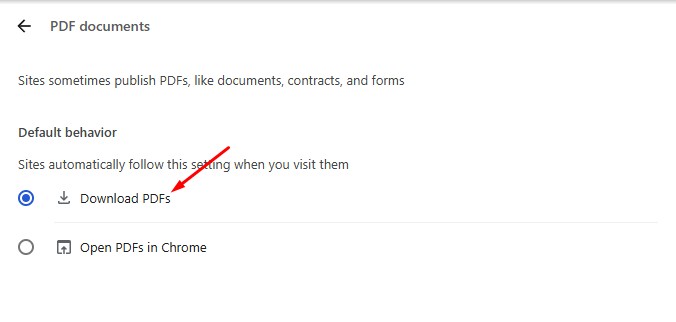
From now on, the Google Chrome browser will only download PDF files; it will not open them automatically. To open a downloaded PDF file, you will have to right-click it and select Open With > Google Chrome or any other PDF reader.
These are the best ways to prevent Chrome from automatically opening PDFs after download. If you need more help managing PDFs using Chrome browser, let us know in the comments.
The post How to Stop Chrome from Automatically Opening PDFs After Download appeared first on TechViral.
from TechViral


0 Comments