
While using Windows 11, users often encounter an unusual problem. The icons that sit on the Taskbar sometimes go missing. The apps pinned to the Taskbar remain accessible, but their icons disappear.
This makes it difficult to differentiate between apps. If you’ve been facing the problem recently, here’s what you should do.
1. Check for problems with the app
For example, if you’ve pinned Google Chrome to the Taskbar, but its icon isn’t appearing there, you should check for problems with the Chrome browser.
You may have uninstalled Google Chrome from your computer. But due to some glitch, it still sits on the taskbar.
Check whether you already have the program installed on your device. If it’s not, simply unpin the blank icon from the taskbar and install Chrome again.
2. Clear the Icon DB Cache
This method has helped many Reddit users fix blank Taskbar icons. You can try doing it as well. Here’s what you should do.
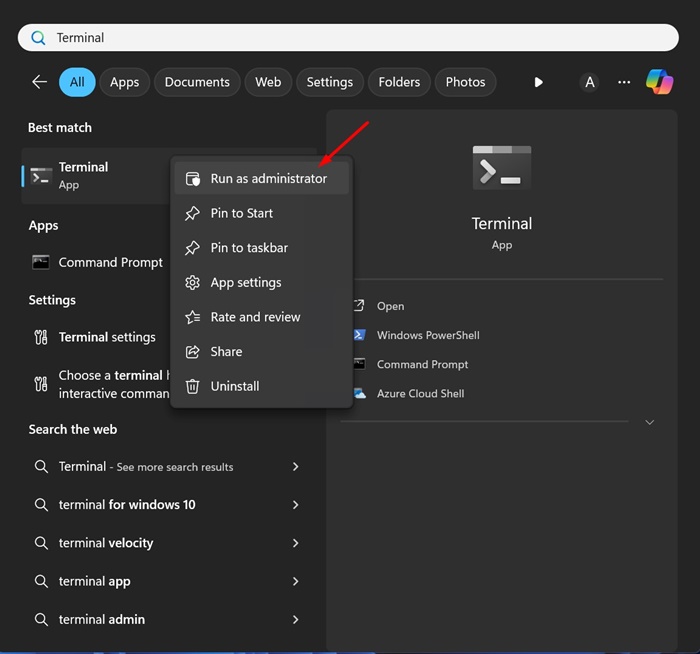
1. Type CMD in the Windows Search. Right click on it and select ‘Run as administrator’.
2. Next, run these commands one by one:
- ie4uinit.exe -show
- taskkill /IM explorer.exe /F
- DEL /A /F /Q “%localappdata%\IconCache.db”
- DEL /A /F /Q “%localappdata%\Microsoft\Windows\Explorer\iconcache*”
- explorer.exe
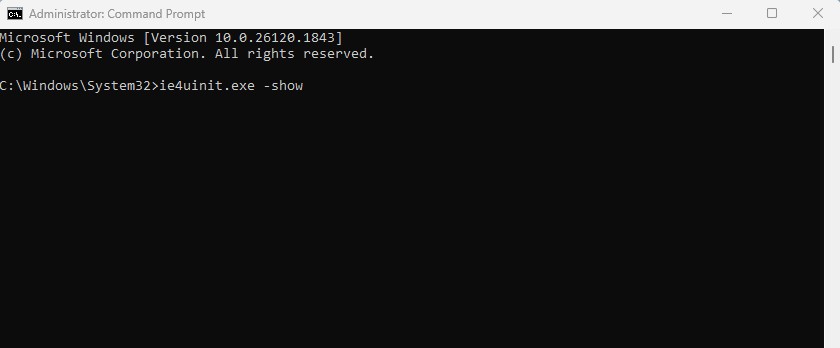
The above commands will kill the Windows Explorer process, delete the Icon DB cache, and then restart the explorer.exe process. This should fix the problem.
3. Register Shell Experience Host
If application shortcuts on the desktop, start menu, and taskbar still show blank icons, you should register the Shell Experience Host.
1. Type PowerShell in the Windows Search. Right click on it and select Run as Administrator.
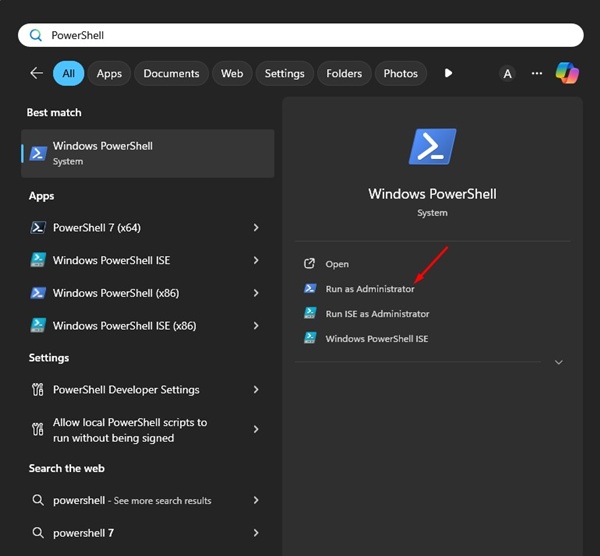
2. When Windows PowerShell opens, execute this command:
Get-AppXPackage -AllUsers | Where-Object {$_.InstallLocation -like “*ShellExperienceHost*”} | Foreach {Add-AppxPackage -DisableDevelopmentMode -Register “$($_.InstallLocation)\AppXManifest.xml”}
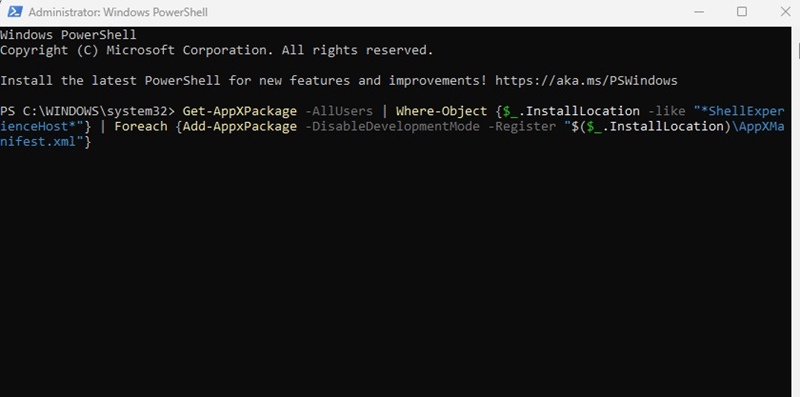
3. Then, restart your computer to apply the changes.
4. Install the Pending Windows Updates
Sometimes, bugs and glitches in the Windows 11 build can trigger such problems. The best way to eliminate such glitches is by installing all pending Windows 11 Updates. Here’s how you can update Windows 11.
1. Open the Settings app from the Windows 11 Search.
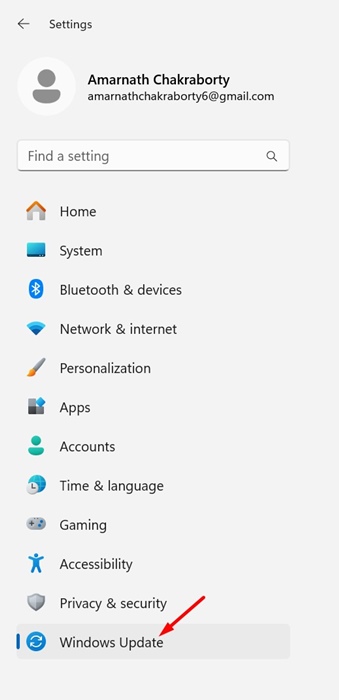
2. Next, switch to Windows Update.
3. On the right side, click on Check for Updates.

4. If any updates are available, download and install them.
5. After updating Windows 11, restart the device.
These are the best ways to fix app shortcuts showing blank icons on the Taskbar. We hope one of these methods helped resolve the issue. If you need more help fixing blank icons on the Windows 11 taskbar, let us know in the comments.
The post Blank Icons in Windows 11 Taskbar? Try these 4 Fixes appeared first on TechViral.
from TechViral


0 Comments