
Generally, it’s not recommended to run multiple apps at startup because it can slow down boot time, but if you want, you can run quite a few lightweight apps that you mainly use without worrying about the slow boot. Below are the ways to launch apps at startup in Windows 11.
1. Launch apps at Startup via Settings
We will use the Windows 11 Settings app to launch apps automatically at startup.
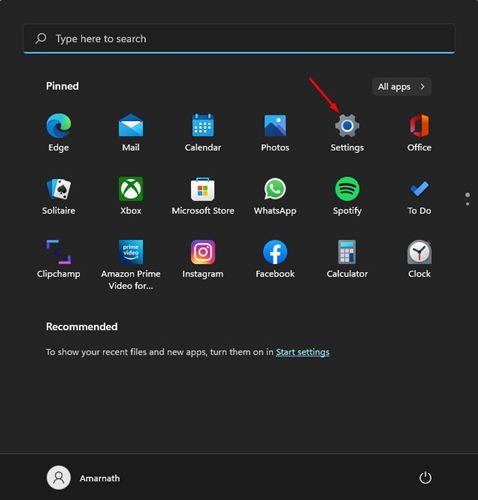
1. Click the Windows 11 Start button and select Settings.
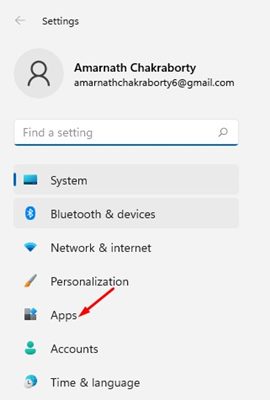
2. Click Apps.
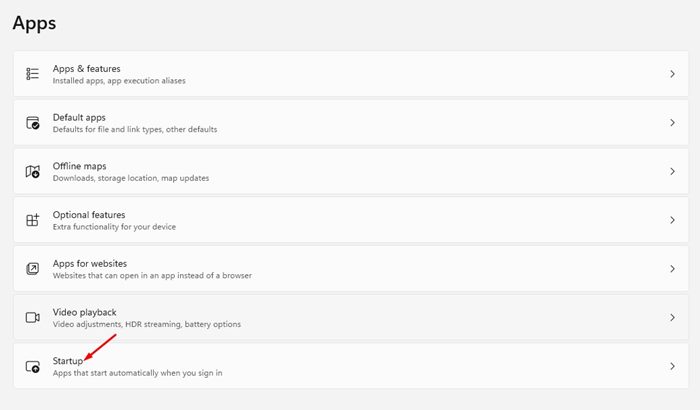
3. Scroll down and click Startup.
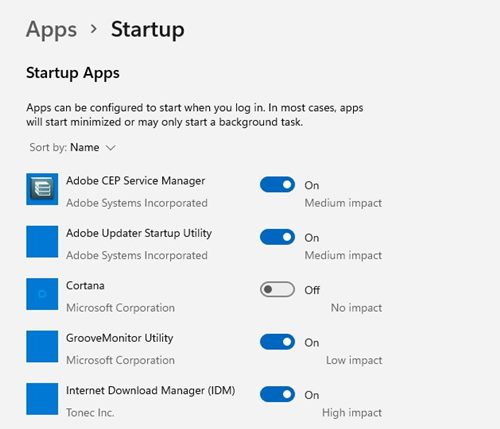
4. You will see a list of apps you can launch at startup. Go through the list of apps.
5. Turn on the apps you want to launch at startup automatically.
2. Launch Apps at Startup via Task Manager
We will utilize the Windows 11 Task Manager to launch apps at startup.
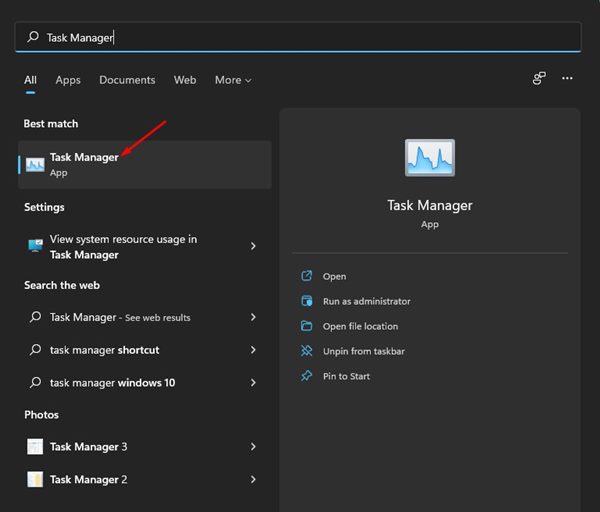
1. Open Task Manager from the Windows Search.
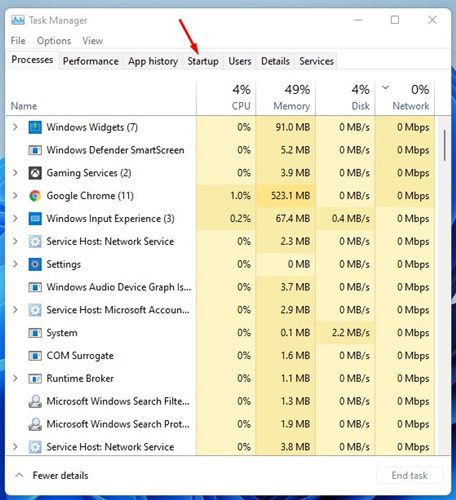
2. Switch to Startup.
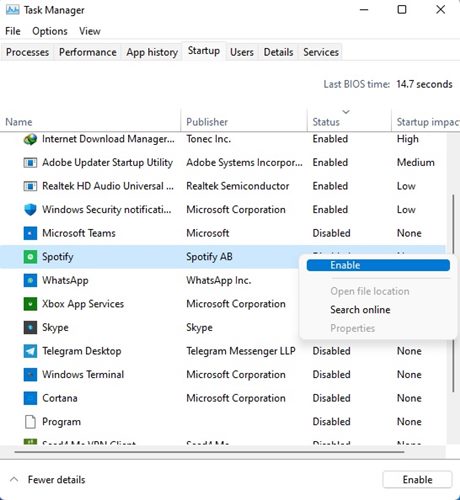
3. Right-click on the app that you want to launch at startup and select Enable.
3. Adding Apps to the Startup Folder
You can manually add apps to the startup folder to launch them at startup.
1. Press the Windows Key + R button to open the RUN dialog box.
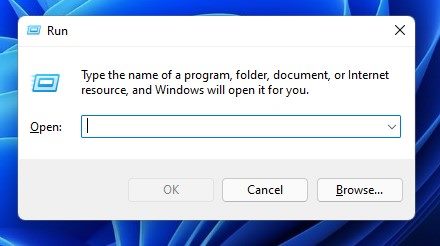
2. Type in the shell:startup and press Enter.
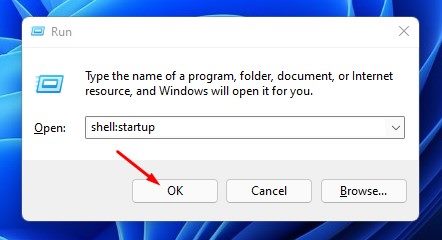
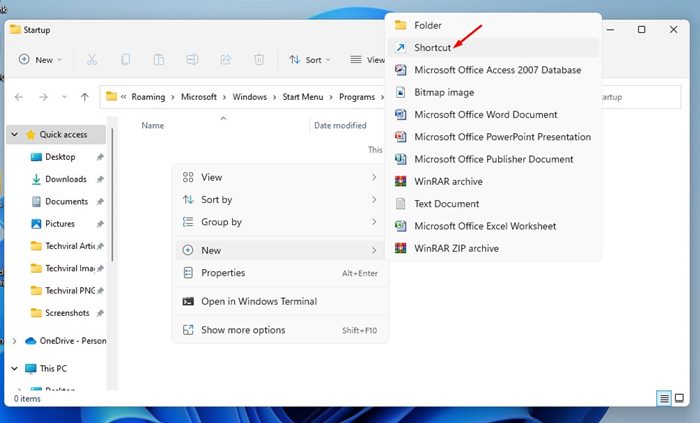
3. This will open the Startup folder in File Explorer. Right-click anywhere on the screen and select New > Shortcut.
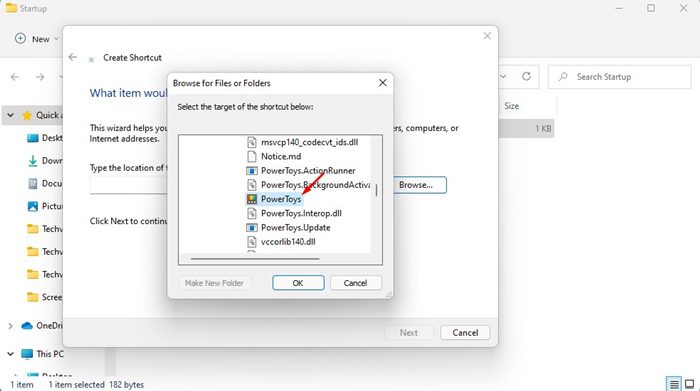
4. In the Type the location field, click the browse button and locate the .exe file of the program you want to launch, and click OK.
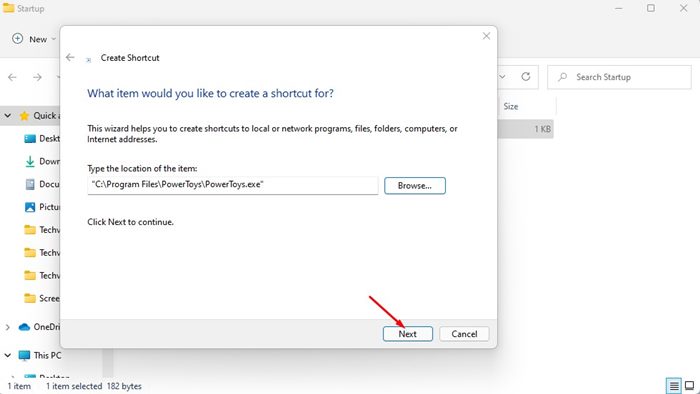
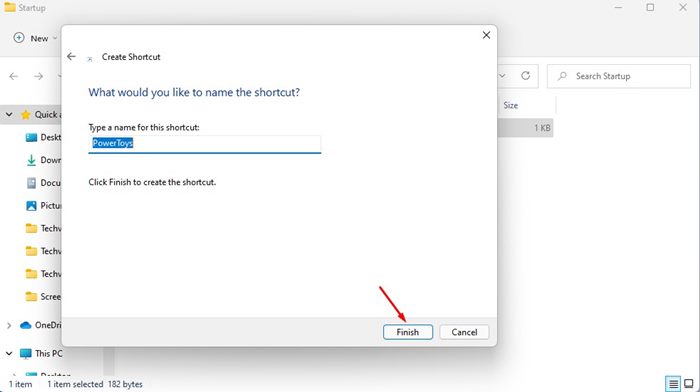
5. Once you’ve completed this, click Next and type a name for this new shortcut. After assigning the name, click Finish.
4. Configure the Apps to Launch Automatically at Startup
You often have the option to configure an app to launch automatically at startup from its in-app settings. The steps may vary depending on your app, but the option to launch at Startup usually resides in the app’s General or Startup Settings. Here’s an example of how to enable the Spotify app to launch automatically at startup.
1. Launch the Spotify app.
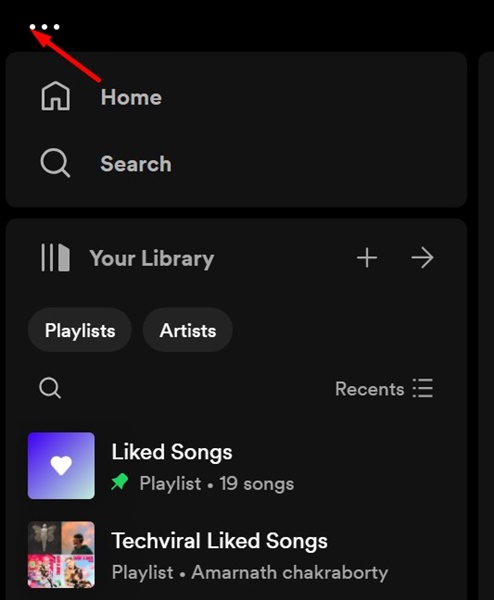
2. Click on the three dots at the top left corner.
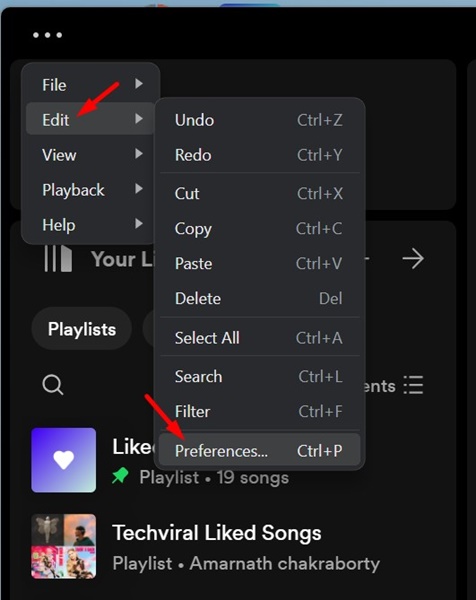
3. Select Edit > Preferences.
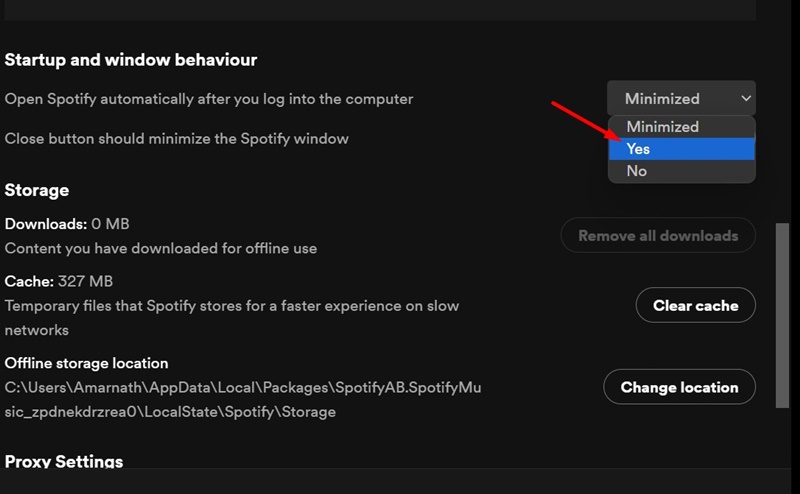
4. Scroll down to Startup and Window behavior. Click the drop-down menu and select Yes.
Adding apps to the Startup folder on Windows 11 is pretty straightforward. To launch apps during startup on Windows 11, follow these methods. If you have any doubts, let us know in the comment box below.
The post 4 Different Ways to Launch Apps At Startup in Windows 11 appeared first on TechViral.
from TechViral


0 Comments