
The error message generally appears while updating or installing the graphics driver. It appears when you try to install an incompatible driver for your graphics card. Driver compatibility can mean many things. For example, you may encounter this error when installing a 32-bit driver on your 64-bit operating system.
It could also be that you’re trying to install a driver on an incompatible Windows build. Another reason for this error is hardware failure; if the graphics card is not properly seated, the Nvidia drivers may fail to detect it.
Now that you know the main reasons for the error message, you should resolve it. Here are some simple methods to resolve the NVIDIA graphics driver incompatible with this version of Windows error message.
1. Make sure your computer has an NVIDIA graphics card
The best way to determine whether you have an NVIDIA GPU is to check the DirectX report.
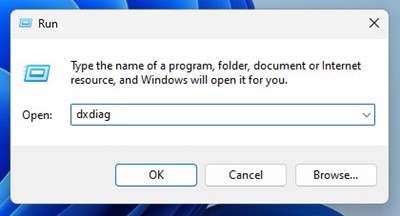
1. Press the Windows Key + R button on your keyboard. This will open the RUN dialog box. On the RUN dialog box, type dxdiag and press Enter.
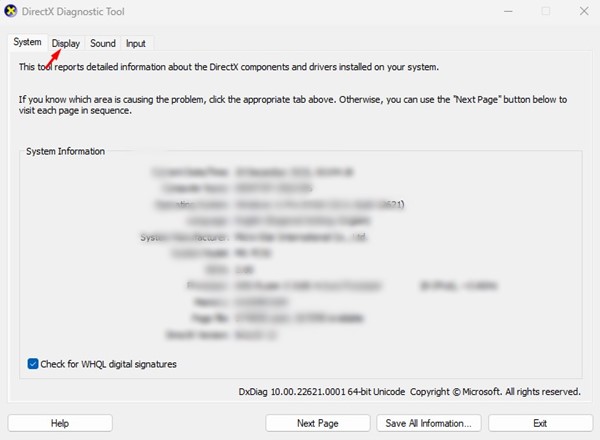
2. Switch to the Display tab on the DirectX Diagnostic Tool.
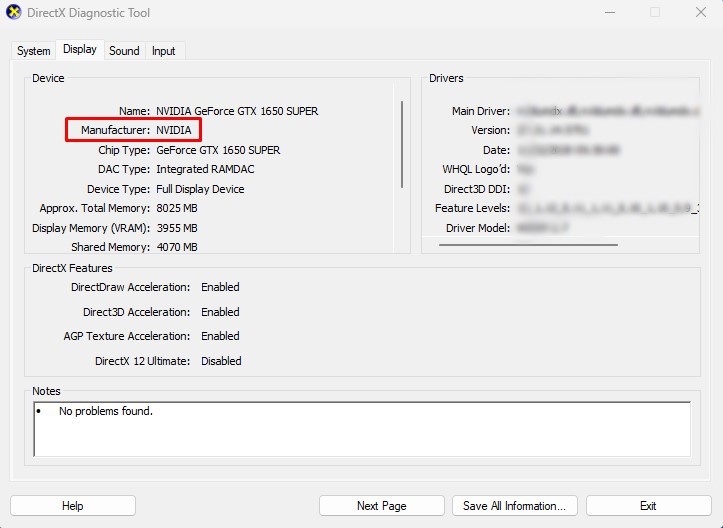
3. Check the Manufacturer. If it shows NVIDIA, then you have an NVIDIA GPU. If it shows AMD, you are trying to install the wrong driver.
2. Reinstall the NVIDIA Graphics Driver
Reinstalling the existing NVIDIA graphics driver can help.
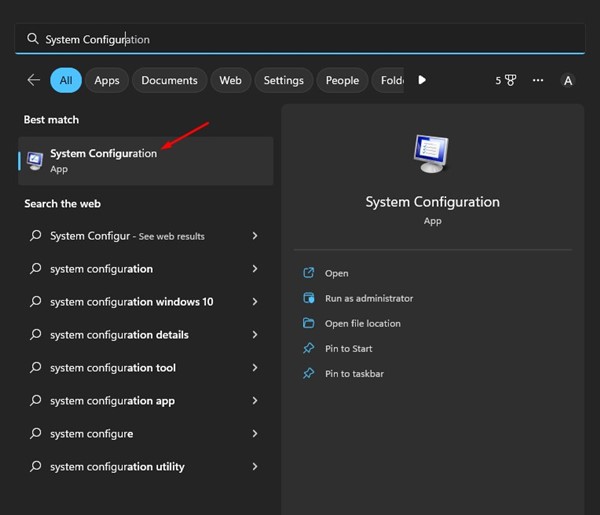
1. Open the System Configuration app from the Windows 11 Search.
2. Switch to the Boot tab and check the Safe Boot option. Once you have done this, click the Apply button and restart your computer.
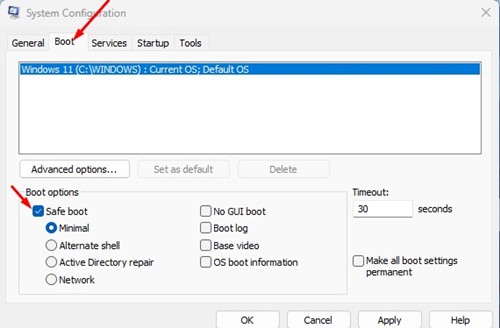
3. After restarting, navigate to Local Disk C > Program Files > Program Files (x86) and delete the NVIDIA Corporation folder.
4. Open Device Manager from the Windows Search.
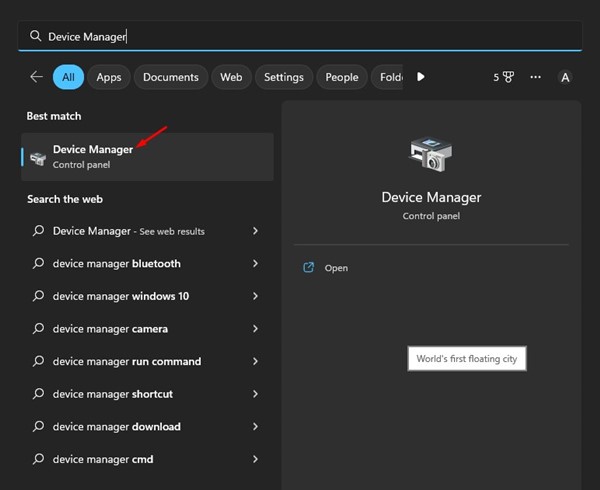
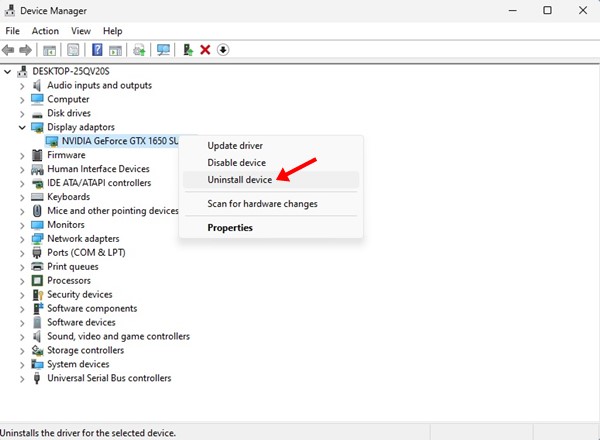
5. Right-click the NVIDIA Display adapter and select Uninstall Device.
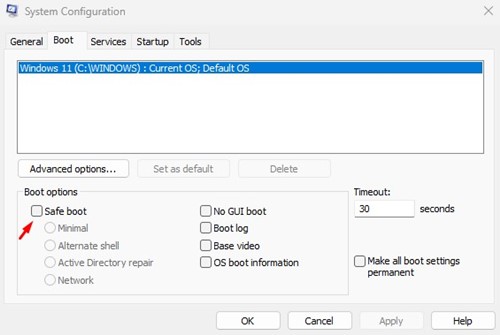
6. Once uninstalled, open System Configuration again and turn off the Safe Boot option. You will be asked to restart your PC.
7. Now open the NVIDIA official website and download the latest graphics driver for your PC.
8. Once downloaded, install it on your device.
3. Use NVIDIA GeForce Experience
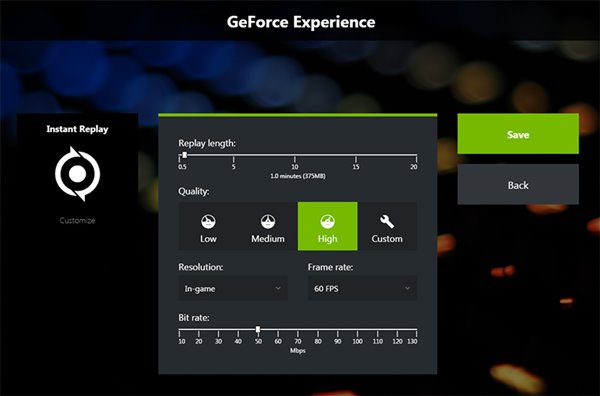
NVIDIA GeForce Experience is a popular software suite designed to enhance PC gaming performance. You can use it to download or update your existing NVIDIA graphics driver.
- Download the NVIDIA GeForce Experience on your PC.
- Launch NVIDIA GeForce Experience and switch to the Driver tab.
- If your PC has no graphics driver, NVIDIA GeForce Experience will show you the Install button.
- Click the Install button to install your PC’s compatible NVIDIA graphics driver.
4. Update your Windows operating system
Windows is designed to install the much-needed drivers automatically. So, if you can’t install the driver and still get the error, it’s best to update the entire OS. This will download & install the most compatible graphics driver.
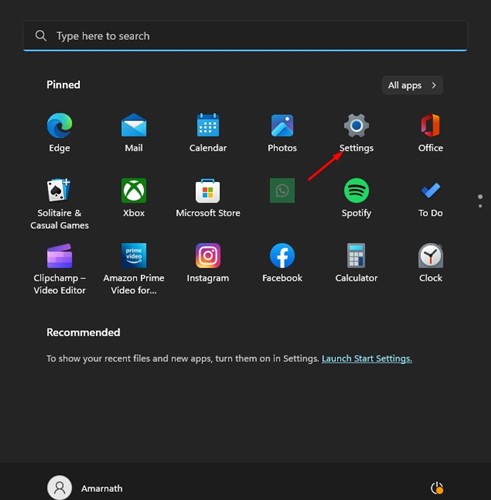
1. Open Windows Search and click on Settings.
2. Switch to Windows Update.
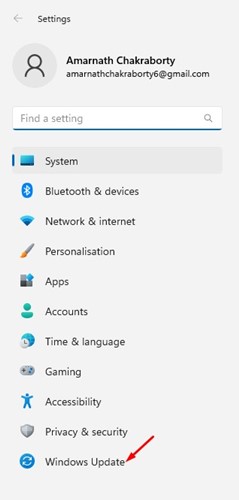
3. Click the Check for Update.

Also read: Download NVIDIA GeForce Experience Offline Installer
This guide explains how to resolve the ‘NVIDIA graphics driver is not compatible with this version of Windows’ error message. If you need more help fixing the NVIDIA Graphics driver error, let us know in the comments below.
The post How to Fix: NVIDIA Driver is Not Compatible With This Version appeared first on TechViral.
from TechViral


0 Comments