
Windows 11 allows you to mount or unmount a drive in a folder. This means that when you open a folder, you will see the drive’s content appearing in it. This is a great feature and might turn out to be helpful in a few situations. If you mount a drive inside a folder, it will appear as if it is an actual drive – the one you see in your File Explorer. This one will serve as a shortcut file for the actual drive.
So, if you are interested in mounting a drive in a folder in Windows 11, here’s what you should do.
Mount a drive in a Folder in Windows 11 via Settings
We will use Windows 11’s Settings app to mount a drive in a folder in Windows 11.
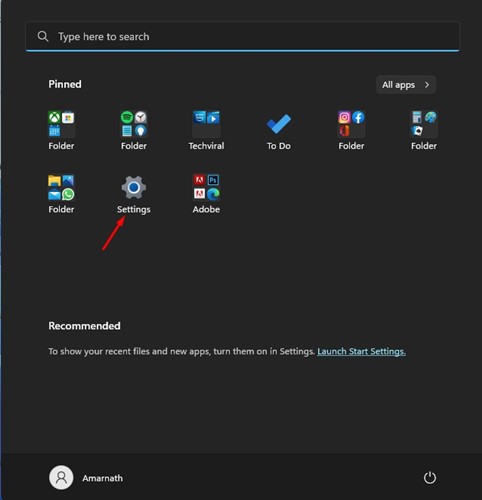
1. Click on the Windows 11 Start button and select Settings.
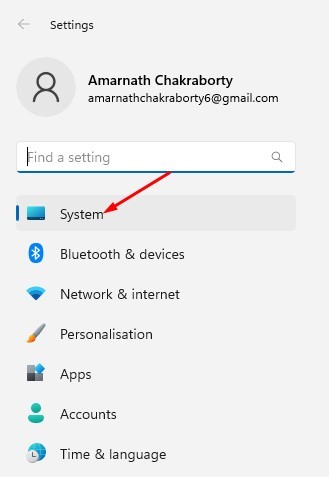
2. Switch to System.
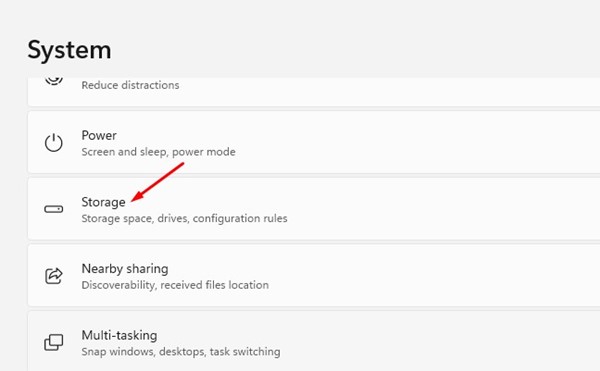
3. On the right side, scroll down and click on Storage.
4. On the Storage page, expand the Advanced storage settings.
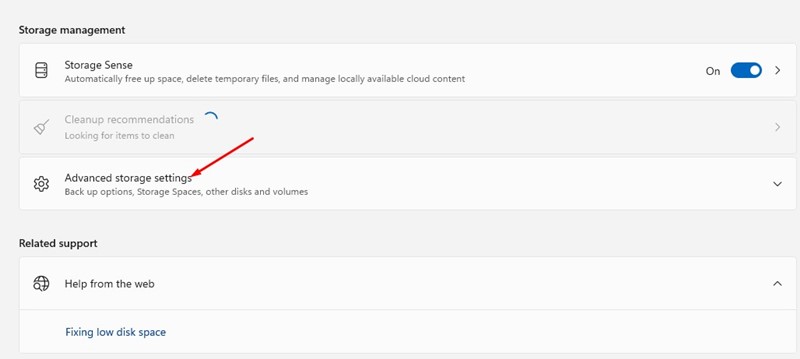
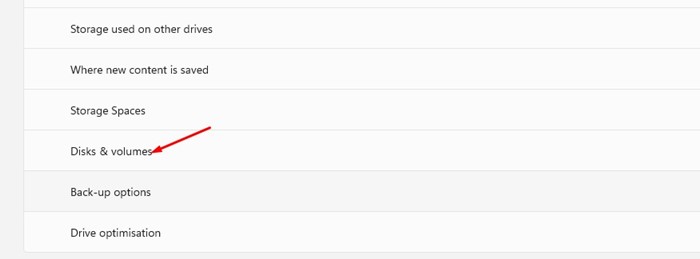
5. On the expanded menu, click Disk & Volume.
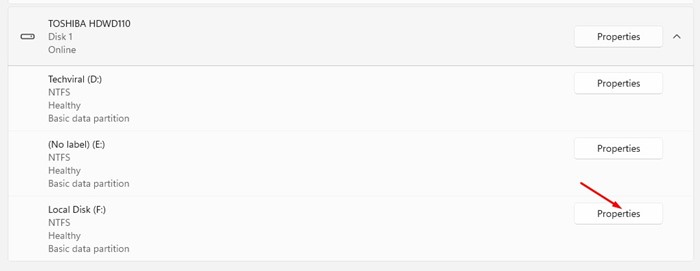
6. Click on the Properties button beside the drive you want to mount in a folder.
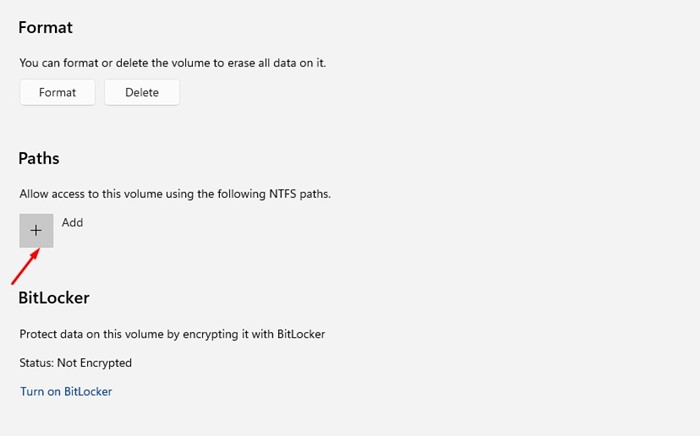
7. On the Paths tab, click on (+ Add).
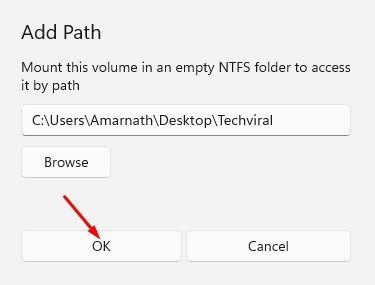
8. On the Add Path prompt, enter the path of the folder where you want to mount the drive. Once done, click Ok.
Unmount a Drive from a Folder in Windows 11
If you don’t want to access the drive from a folder, you can unmount it in easy steps. Here’s how you can unmount a drive from a folder in Windows 11.
1. First, click on the Windows 11 Start button and select Settings.
2. In the Settings app, switch to the System tab.
3. On the right side, scroll down and click Storage.
4. On the Storage page, expand the Advanced storage settings.
5. On the expanded menu, click on Disk & Volume.
6. Next, click the Properties button beside the drive you’ve mounted in a folder.
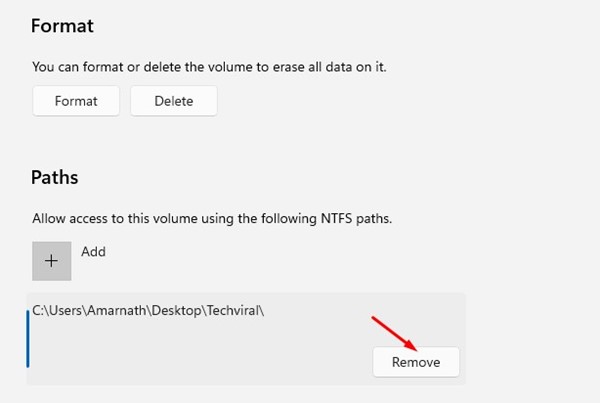
7. On the next screen, click the Remove button underneath the assigned path.
Also read: How to Change Drive or Volume Label in Windows 11
You can mount a drive in a folder to quickly access your frequently accessed drive. So, these are some simple steps to mount or unmount a drive in a folder on a Windows 11 computer. If you need more help related to mounting or unmounting a drive in a folder in Windows 11, let us know in the comments below.
The post How to Mount or Unmount a Drive in a Folder in Windows 11 appeared first on TechViral.
from TechViral


0 Comments