
It is easy to review which apps can access the iPhone’s location data. You can turn off location-sharing for specific apps or the feature altogether. Here’s how to turn off location services on an iPhone.
1. Turn Off Location Sharing Through iPhone Settings
You can directly turn off location sharing from the iPhone Settings.
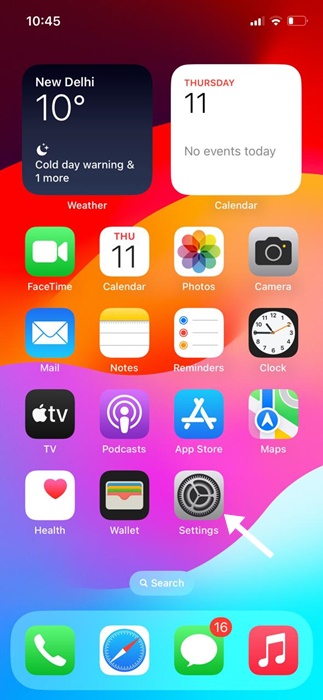
1. Open Settings.
2. Tap Privacy & Security.
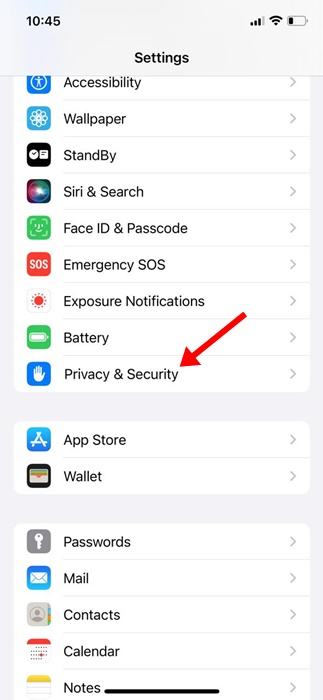
3. Tap Location Services.
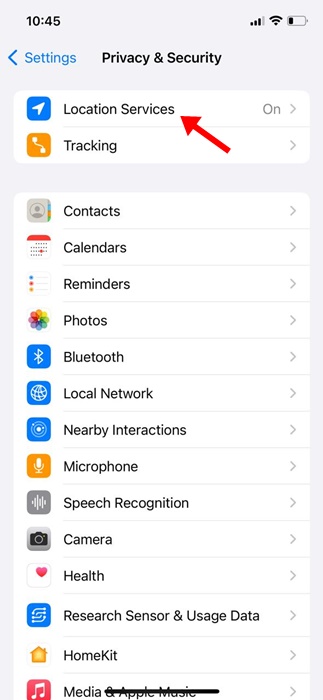
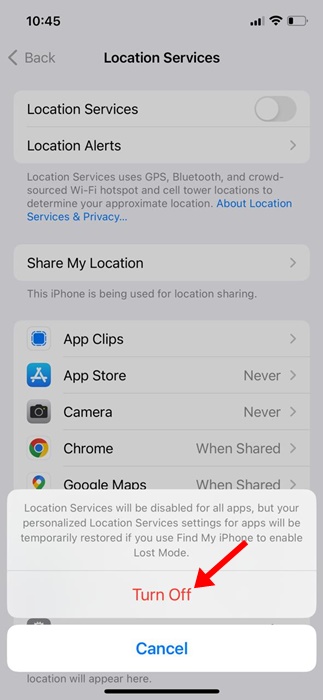
4. Toggle off the Location Services.
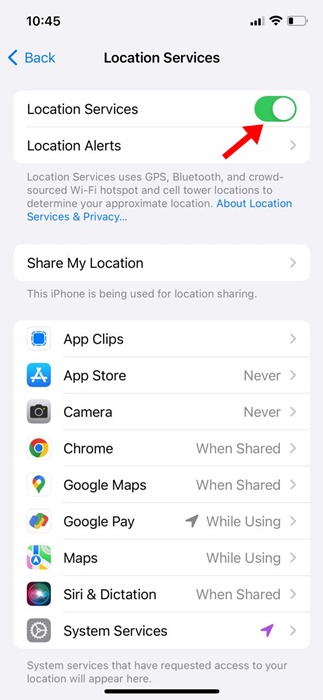
5. On the confirmation prompt, tap Turn off.
2. Turn Off Location Sharing for Specific Apps on iPhone
If you don’t want to turn off location sharing altogether, you can choose to turn off location sharing for selected apps on your iPhone.
1. Open Settings.
2. Tap Privacy & Security.
3. Tap Location Services.
4. Scroll down a bit to see all apps that have requested access to your location.
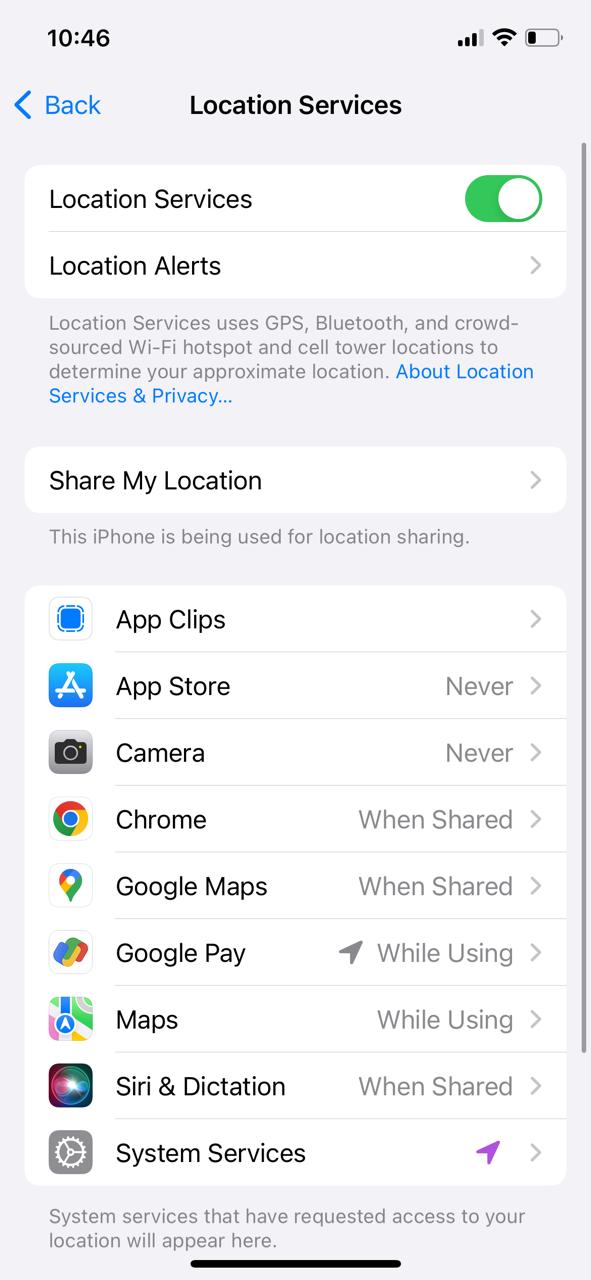
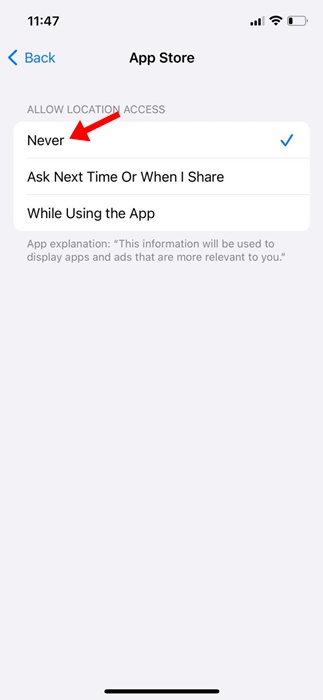
5. Tap the App name and select Never. This ensures that the selected application can never use location services.
3. Turn Off Location for System Services
iOS also has certain backend location-tracking features that you may want to stop. Here’s how you can turn off location for system services.
1. Open the Settings app.
2. Scroll down & tap Privacy & Security.
3. Tap Location Services.
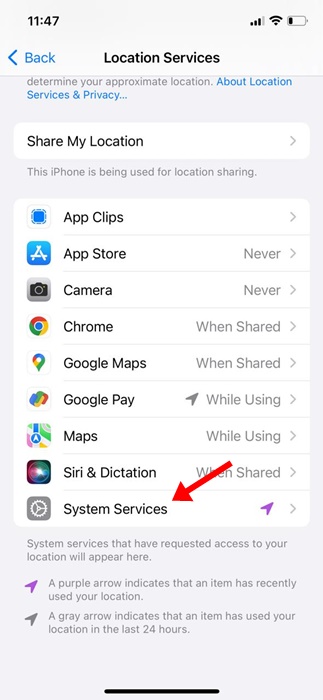
4. Scroll down to the bottom of the screen and tap System Services.
5. On the next screen, you will find several system services with access to your location data. To stop sharing these services, disable the toggle beside them.
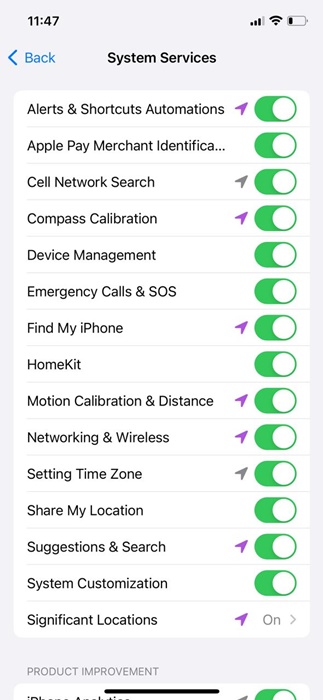
6. On the confirmation prompt that appears while disabling, tap on Turn Off.
4. Disable Location Sharing (Find My iPhone)
The Find My App, which helps you locate your lost or missing iPhone, also tracks the location of your iPhone in the background. While the app needs location data for genuine reasons, if you have privacy concerns, you should turn off location access for the Find My iPhone app.
1. Open the Settings app.
2. Scroll down & tap Privacy & Security.
3. Tap Location Services.
4. Tap Share My Location.
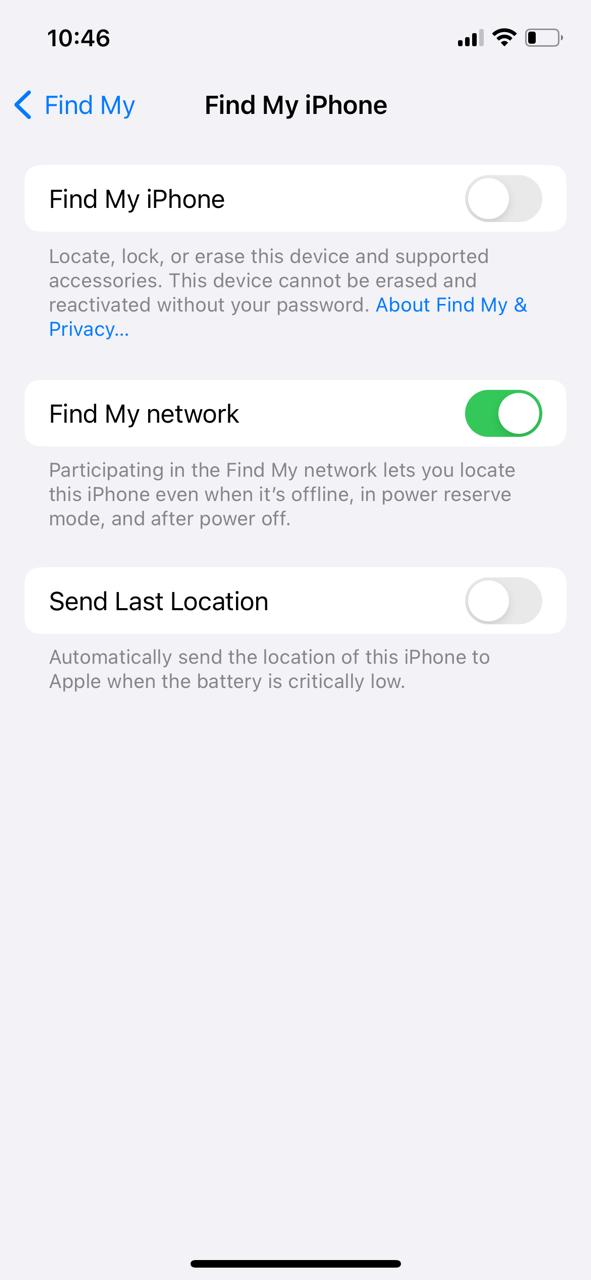
5. Tap Find My iPhone.
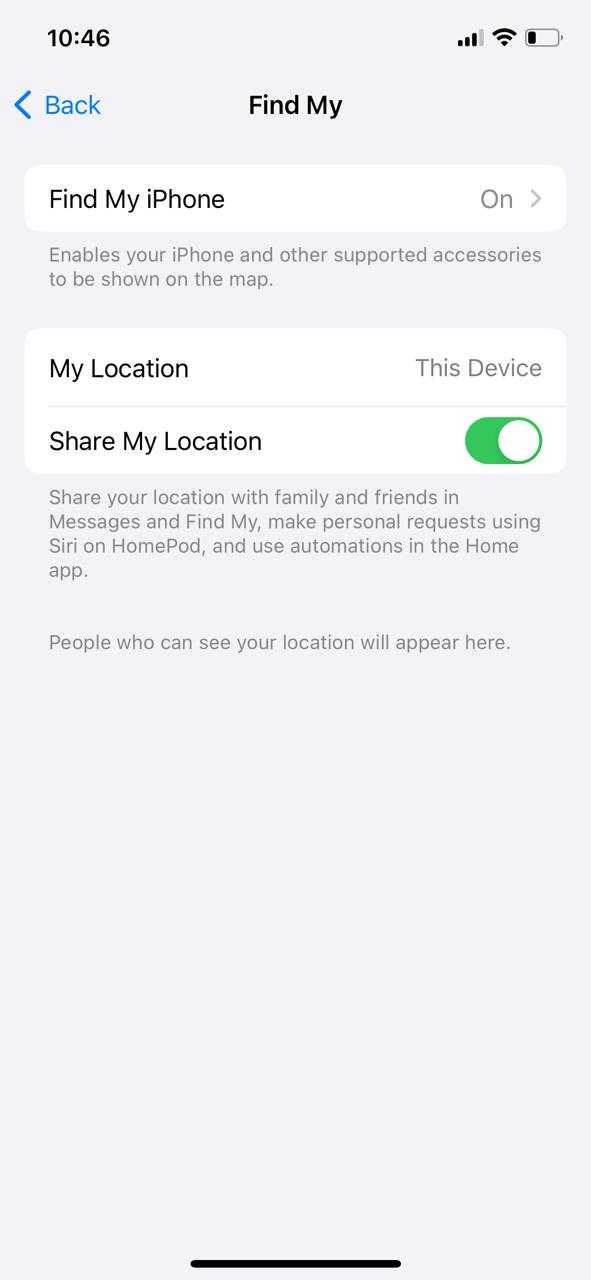
6. Turn off the toggle for Find My iPhone.
This is a detailed guide on how to turn off location services on an iPhone. If you need more help in this topic, let us know in the comments.
The post How to Turn Off Location Services on iPhone appeared first on TechViral.
from TechViral


0 Comments